Make Payment Online
You can make all payments related to your enrollments in Student Portal. You need to submit information about your credit cards and checking accounts that you want to use for the online payments. You can modify and remove information about your credit card.
To make online payments:
-
Choose one of the following paths to view the Make a Payment tab:
-
Navigate to My Finances > Make Payment Online.
-
Navigate to My Finances > Account Information and click the Make a Payment tab, or click Pay Now on the payment amounts.
-
-
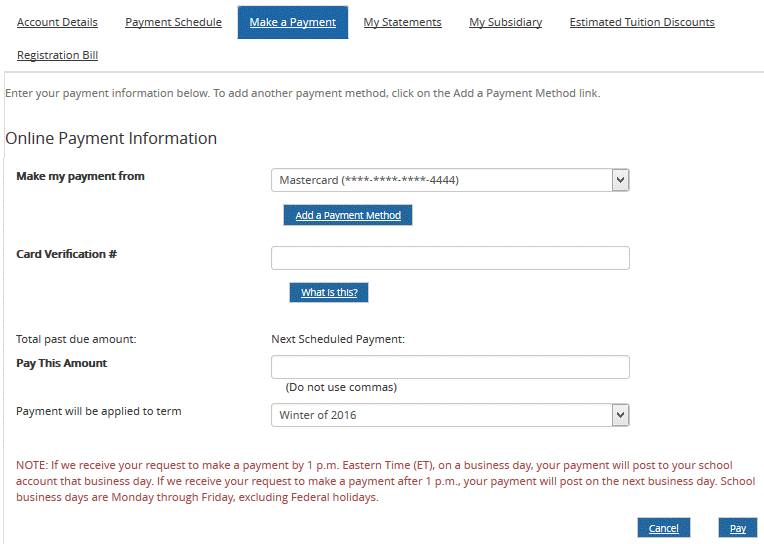
Select the check box to accept the payment agreement and click Continue. The Online Payment Information is displayed.
-
In the Make my payment from list, select a credit card.
-
In the Card Verification # field, enter the 3- or 4-digit verification number printed on your card
-
In the Payment Amount field, enter the amount to pay.
-
In the Payment will be applied to term list, select the term.
-
In the Amount To Apply column, enter the amounts to apply to each charge.
-
Click Pay. The payment is submitted.
Help Build: 4/3/2018 | Portal 19.0 | © 2018 Campus Management Corp. All rights reserved. | www.campusmanagement.com
